Lighting in D5 Render: your ultimate guide
Lighting is without a doubt the most important factor for a convincing render. Even with perfect models and materials, a scene can look flat or unrealistic without proper lighting setup. In this guide, you’ll discover how to make the most of lighting in D5 Render.
Why lighting matters in renders
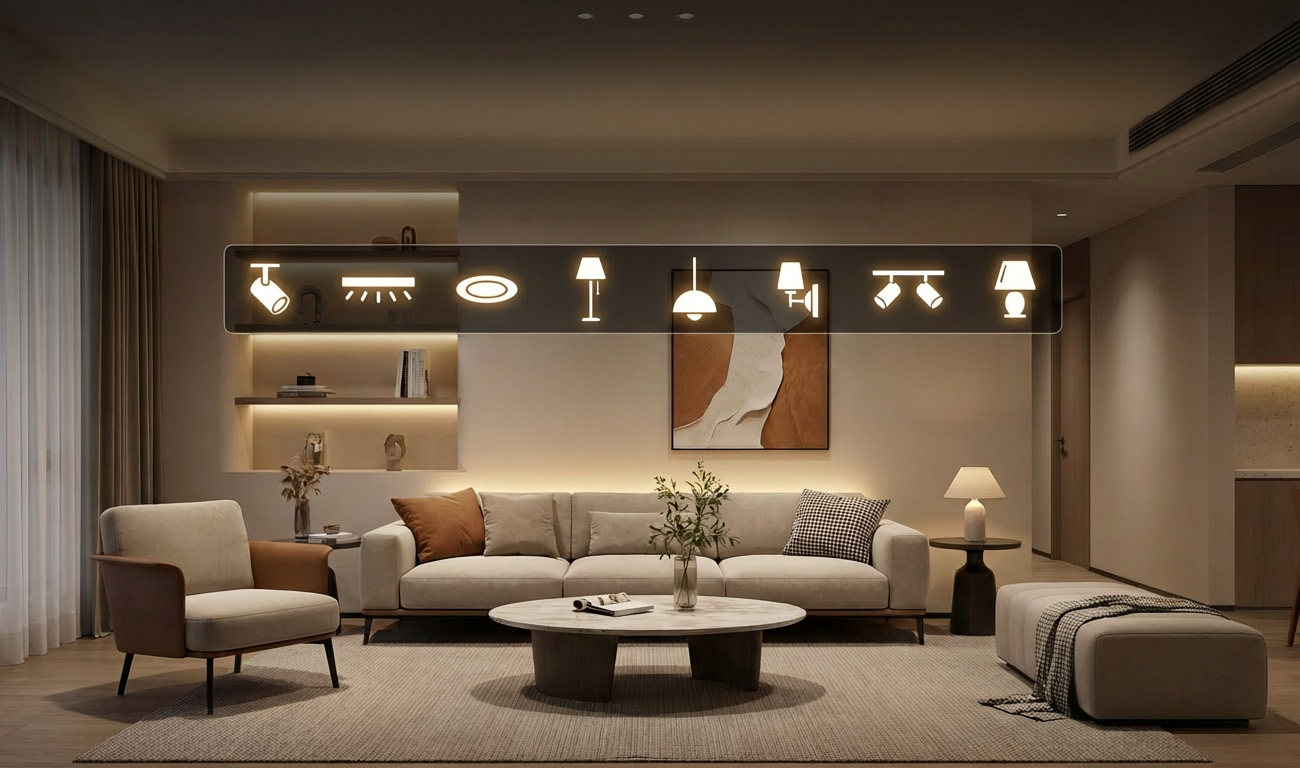
Lighting determines how your design is perceived. It influences depth and scale, material perception, atmosphere, and storytelling. A well-lit scene immediately feels realistic. Light is not only functional, but also emotional and narrative.
The basics: the Smart Lighting System in D5 Render
D5 Render uses a smart lighting system consisting of three main modes:
Geo Sky for the fast concept phase
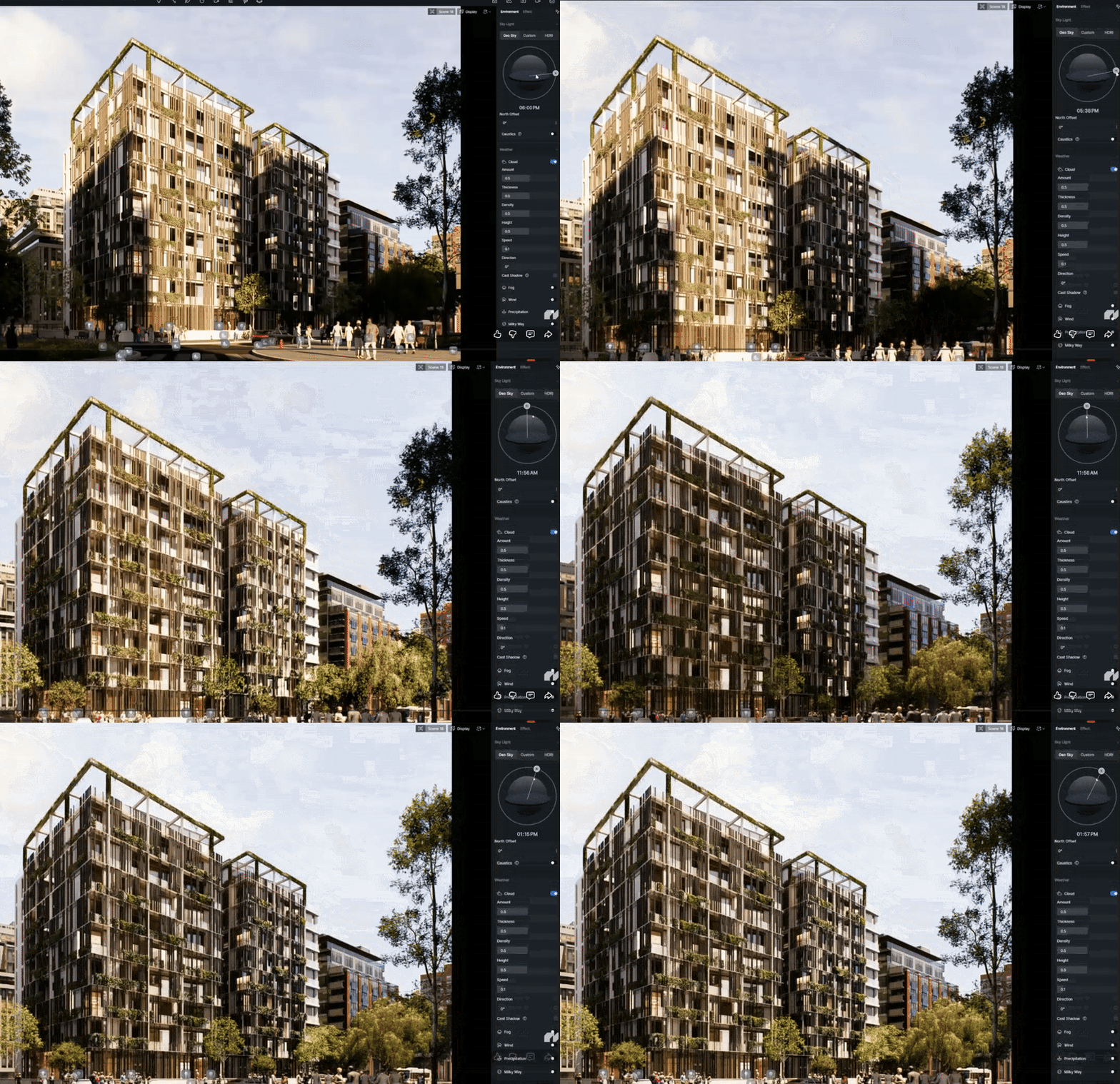
Geo Sky is your starting point. This mode simulates natural daylight based on location, time, and sun position. Use Geo Sky when you want to quickly check volumes, run shadow studies, or iterate during the concept phase.
It’s the fastest way to bring a “dark model” to life instantly.
Custom mode for full control
In Custom mode, you move from “automatic” to full control. You adjust various parameters to achieve exactly the result you have in mind:
- Sunlight intensity for brightness
- Sundisk radius for shadow softness
- Altitude & azimuth for sun position
This is where you start shaping light instead of just adding it. A sundisk radius of 5–6, for example, often produces natural shadows.
HDRI for photorealism
HDRI is essential for high-end renders and offers many advantages:
- Realistic reflections
- Natural color variations
- Better balance between interior and exterior
An HDRI environment adds subtle nuances that are difficult to recreate manually. Combine HDRI with Custom mode for maximum control in a hybrid workflow.
What are accent lights in D5 Render?
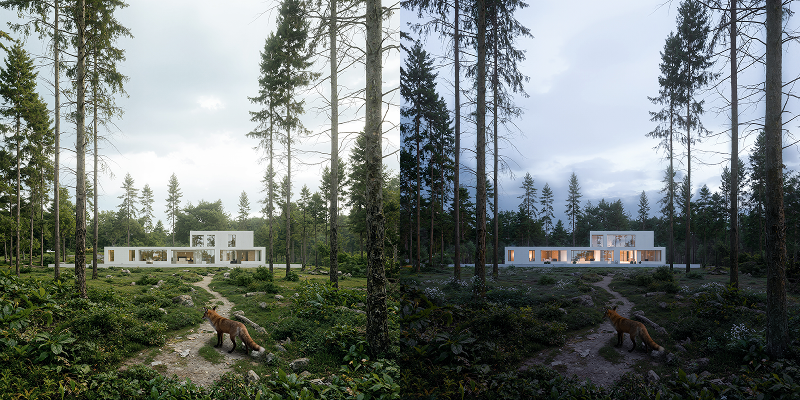
Accent lights are additional lighting options in D5 Render used to create atmosphere and enhance the experience of your design. Alongside global lighting, accent lights are crucial to guide your scene. They help create focal points, add depth, and reinforce the mood. Accent lighting helps build a visual hierarchy and direct the viewer’s eye.
There are several types of accent lights in D5 Render:
Point Light:
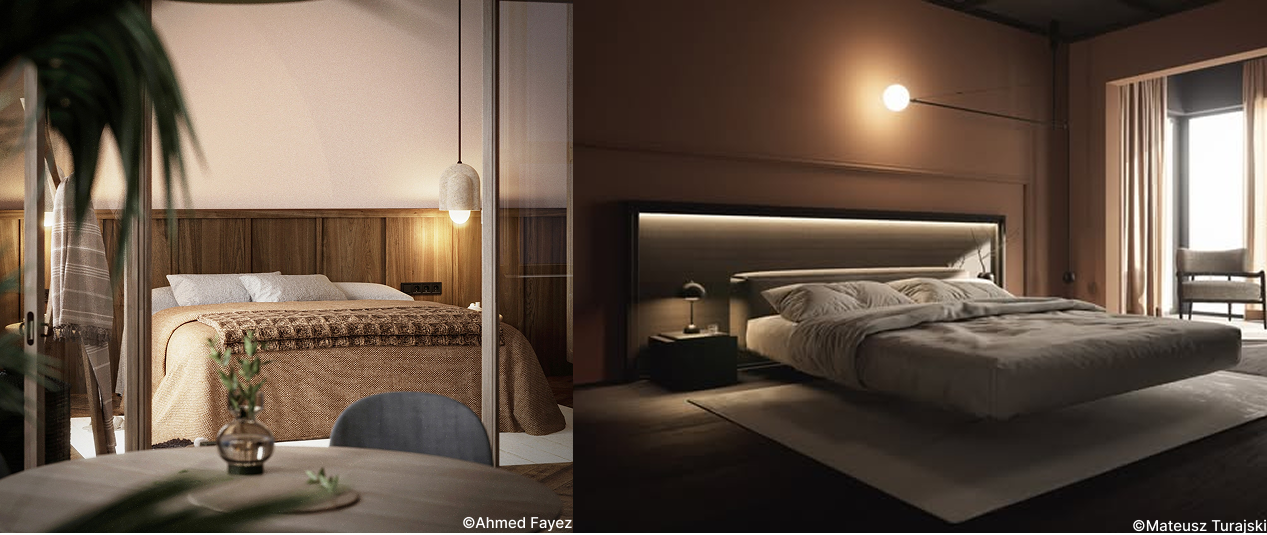
The point light is a digital lamp that emits light evenly in all directions. It’s essential for fixtures like spherical pendant lights or table lamps that require a soft, radial glow. In D5 Render, this is controlled via the Attenuation Radius.
Spotlight:
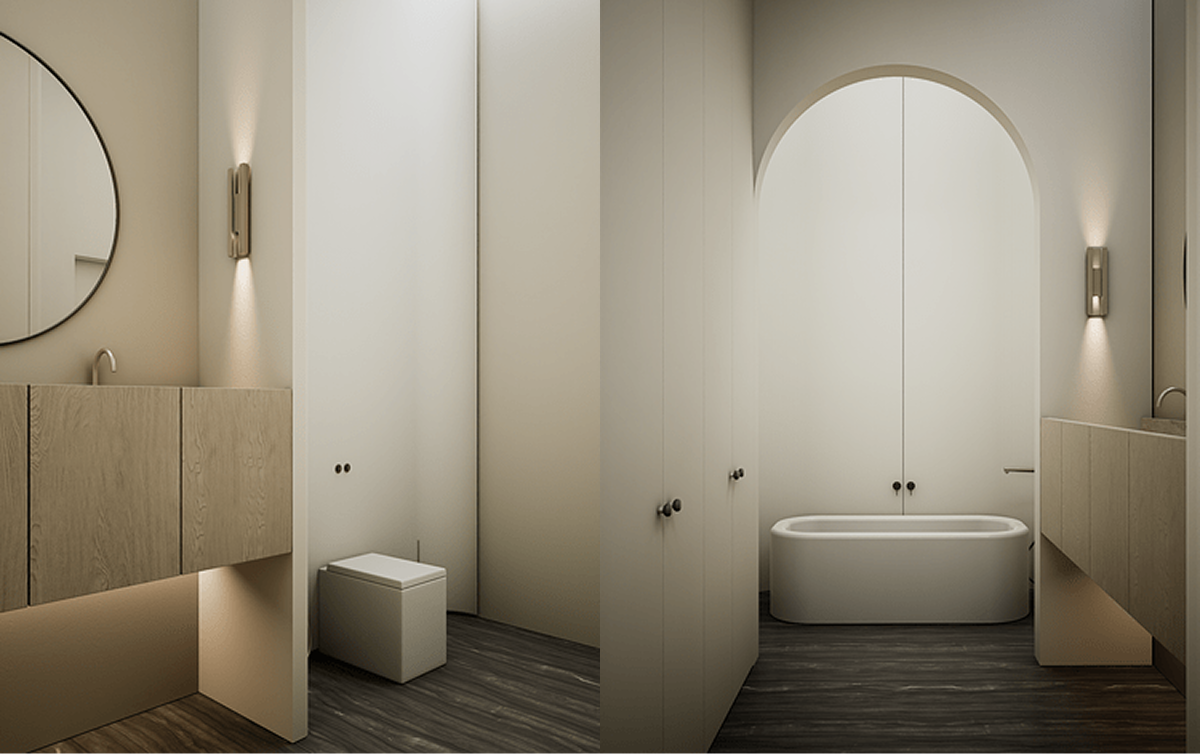
The Spotlight is your main tool for creating visual hierarchy. It’s more than just lighting: it shapes the space.
The “Gallery Wall” approach: To highlight a textured stone wall, it’s common to place a spotlight close to the surface, but the magic lies in the light distribution. Use one of the 6 built-in IES profiles or upload your manufacturer’s photometric data via “+ Customize IES.” This replaces the standard artificial light cone with a realistic distribution, enhancing the material’s relief through shadow and contrast.
Strip Light:
Technically, the Strip Light is a variation of a rectangular light source, optimized for linear architectural details where light direction is crucial. It creates a modern look where lighting appears as an integral part of the structure rather than an added layer.
The “Floating Kitchen” setup: place a Strip Light under cabinets to cast light over a textured backsplash. A key realism tip: if your tiles are glossy, disable “Visible in Reflection” in the inspector. This preserves the lighting while hiding the artificial white reflection of the light source itself.

Rect Light:
While the Strip Light is designed for linear accents, the Rect Light is your powerhouse for broad, diffuse lighting. It is essentially a flat light source with a default Barn Door length of 0, functioning like a softbox in photography and delivering consistent, even illumination.
This tool is ideal for simulating overhead panels in offices or supplementing natural daylight from a window without overexposing the exterior view.
Don’t forget the “Barn Door” angle. By default, this light floods the scene, but adjusting the angle allows you to control the beam. This turns the softbox into a directional accent light—perfect for highlighting specific furniture without spilling light onto unrelated areas, keeping your scene’s hierarchy focused.

Disc Light:
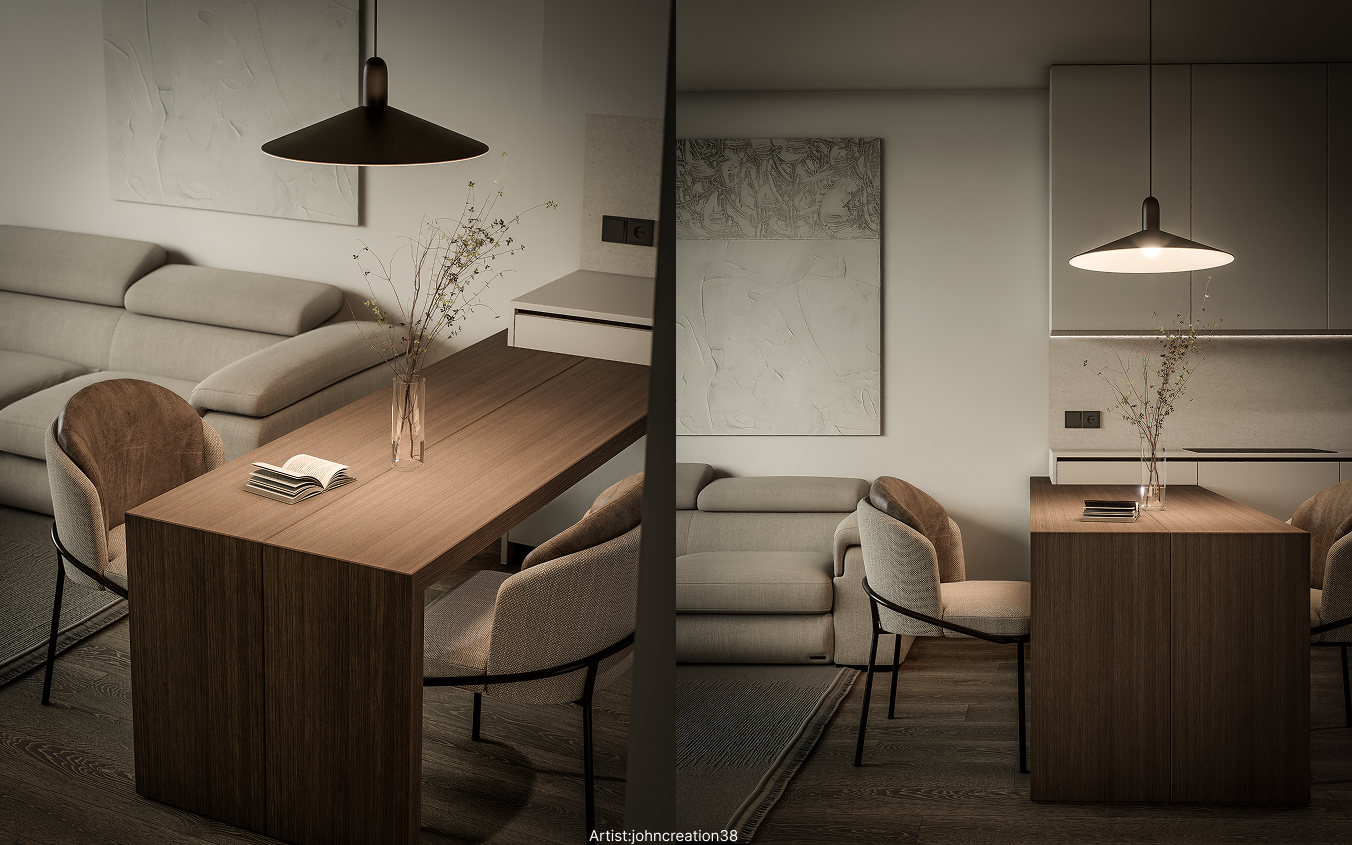
The distinction between a Disc Light and a Rect Light comes down to reflections. In scenes with glossy surfaces—like a marble coffee table or polished concrete—a square reflection from a round ceiling fixture breaks immersion instantly.
Opt for the Disc Light for circular ceiling spots or pendant fixtures to ensure specular highlights on your materials remain perfectly round. By adjusting the Light Source Radius, you can soften the shadow edges, mimicking the high-end, diffused look found in luxury hospitality design.
Stage Light:
For moments that require drama, the Stage Light is perfect. Unlike other accent lights that primarily illuminate surfaces, the Stage Light emphasizes the visibility of the light beam itself.
It’s ideal for car shows, concert stages, or creating a Tyndall effect (visible sun rays) in atmospheric interiors. In D5 Render, this light cuts through the air with volumetric intensity. Use it to highlight a main object, such as a sports car; the sharp, defined beam separates the subject from the background, creating immediate visual hierarchy that standard spotlights cannot achieve.
Activate Stage Light via Menu > Preferences > Widget > Stage Light.
Projector:
The Projector is a powerful storytelling tool that allows you to project an image or video as light. It transforms a simple wall into a dynamic canvas.
Instead of placing a high-polygon tree outside a window (which makes the scene heavier), load a black-and-white image of tree branches into the Projector. Aim it through the window to cast complex, organic shadows on the floor. This creates a rich outdoor feel without heavy computation, keeping your workflow fast and smooth.
Activate it via Menu > Preferences > Widget > Projector.

Perfect lighting with AI Atmosphere Match in D5 Render
D5 Render includes a useful AI tool to speed up your workflow: AI Atmosphere Match.
With AI Atmosphere Match, you upload a reference image and the software automatically generates the correct lighting, atmosphere, and color tone. This significantly accelerates the creative process, especially in early stages.
.gif)
Practical tips for better lighting in D5 Render
1. Work in layers
Combine global lighting (Geo Sky / HDRI) with accent lights and emissive materials.
2. Avoid "over lighting"
Too much light makes your scene look flat. Use contrast and shadows.
3.Pay attention to color temperature
- 2700K → warm and cozy
- 4000K → neutral
- 6000K → cool and business-like
4. Use references
Real photography remains the best guide for realistic lighting.
5. Think like a photographer
Treat your scene like a photoshoot:
- Where is the key light coming from?
- What is your fill light?
- Where is the contrast?
Workflow: how to set up lighting correctly
- Start with Geo Sky for base lighting
- Move to Custom for control
- Add HDRI for realism
- Use accent lights for detail
- Use AI tools for fast iterations
Lighting in D5 Render is not a technical obstacle, but a creative lever. By making smart use of the Smart Lighting System, accent lights, and AI tools, you can transform a standard model into a convincing, photorealistic visualization.
Those who master lighting don’t just create better renders—they deliver stronger presentations and more compelling design stories.
Start rendering with D5 Render!
FAQ: lighting in D5 Render
What is the best lighting setup in D5 Render?
That depends on your phase. Use Geo Sky for concepts, Custom for control, and HDRI for photorealism.
How can I make my renders more realistic?
Use HDRI, proper shadow settings, and combine multiple light sources.
Why does my render look “flat”?
You’re likely missing contrast. Add accent lights and work with shadows.
Can I use AI for lighting?
Yes, with AI Atmosphere Match you can quickly generate a realistic lighting setup based on a reference image.